Start with Club setup, then choose Android or PC. Screenshots show an example club; your teams and device names will differ.
Prepare your phone.
Complete Club setup first. Use an Android phone that supports Bluetooth Low Energy peripheral advertising, with a reliable internet connection and power for the match.
- Install and open the OwzThat Android app.
- Allow Camera, Microphone and Nearby devices permissions, plus notifications when requested.
- Tap Sign in & choose match, sign in with your OwzThat account and select the correct fixture.
- Choose a camera and check the preview and sound meter. Scroll the side panel to reach the remaining controls.
The phone receives the Bluetooth score feed and streams the camera video. Run Play-Cricket Scorer on a separate scoring device.
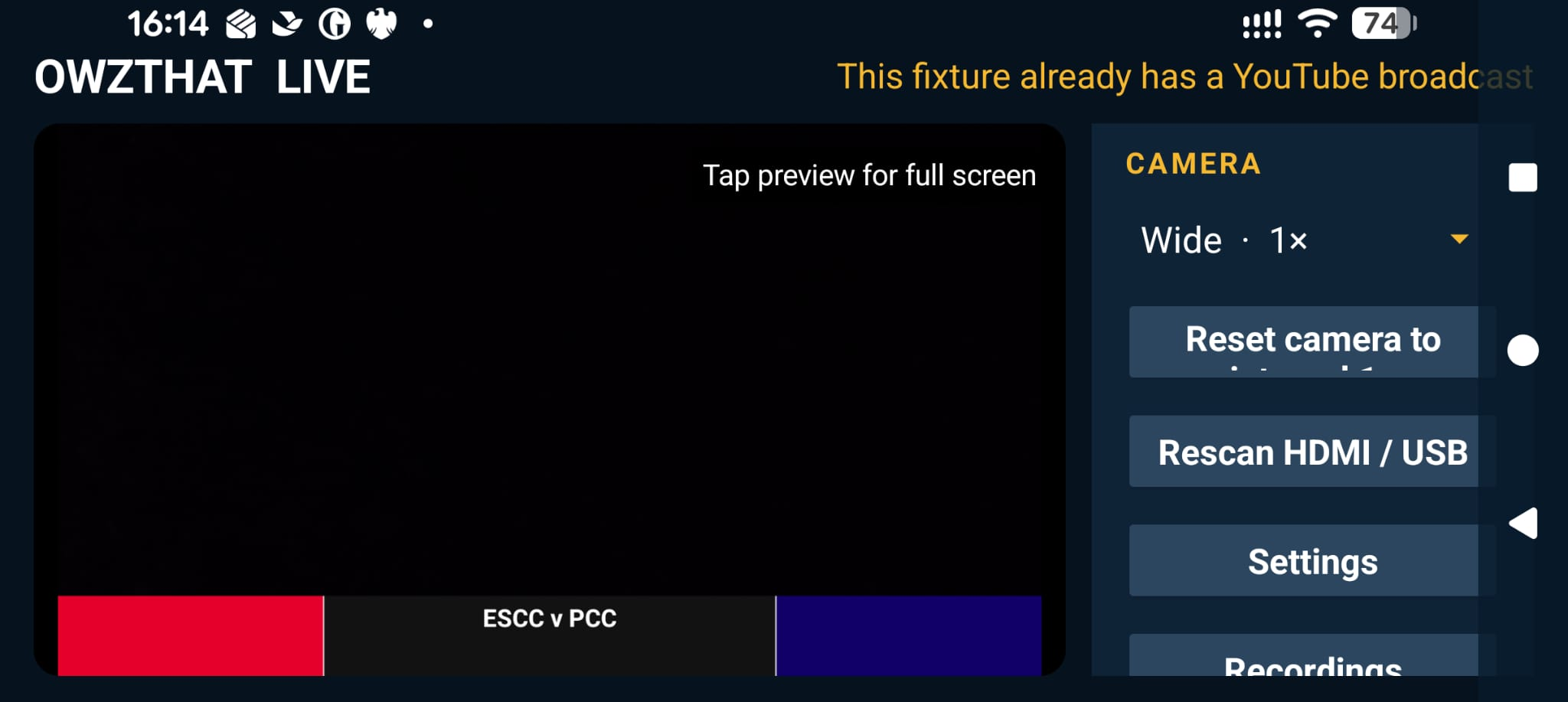
Choose your camera.
Phone camera
Select the phone’s camera from the camera list, frame the pitch and tap the preview if you want a full-screen view.
External camera
Use a compatible USB camera, or connect an HDMI camera through a compatible HDMI-to-USB capture device and a USB host/OTG adapter for the phone.
HDMI camera → HDMI-to-USB capture device → USB host adapter → Android phone
Approve USB access, tap Rescan HDMI / USB and select the external camera. Compatibility depends on the phone and capture device, so check the picture and sound before match day.
Connect Play-Cricket Scorer.
The scoring device sends each ball to the OwzThat Bluetooth (GATT) bridge running on your Android phone. This connection supplies the live score overlay.
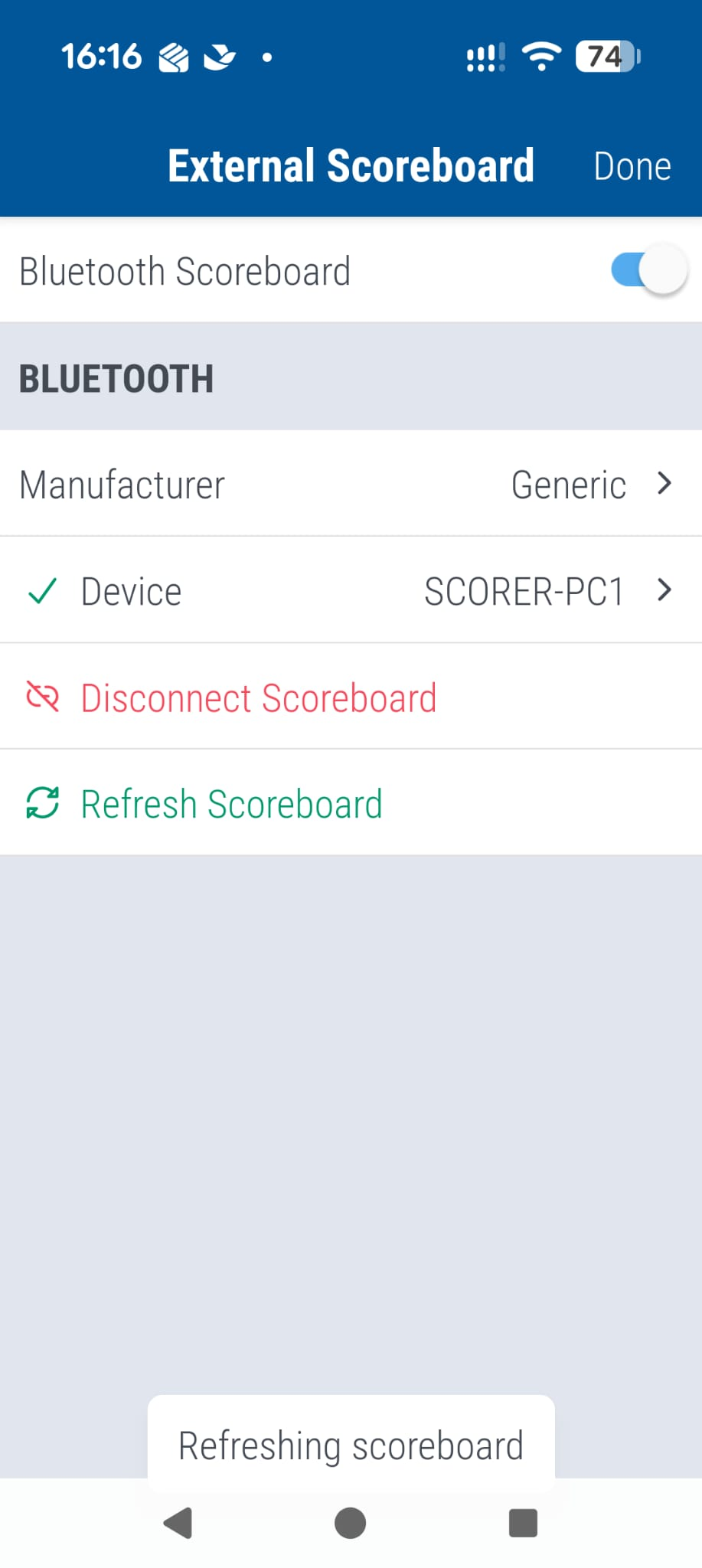
Play-Cricket Scorer → Match Settings → External Scoreboard
- Keep OwzThat running on the Android phone and turn Bluetooth on on both devices.
- In Play-Cricket Scorer, turn Bluetooth Scoreboard on and select Manufacturer → Generic.
- Open Device and select the Android phone running OwzThat. The example shows SCORER-PC1; choose your own device’s name.
- Use Refresh Scoreboard to send the current score. Check that OwzThat shows it, then confirm the next scored ball updates the overlay.
Essential for ball-by-ball updates. Connect from Play-Cricket Scorer’s External Scoreboard screen. Signing into OwzThat or selecting a fixture alone does not connect the live score feed.
If the score stops updating, check the selected device, reconnect the scoreboard and refresh it. Keep the devices within reliable Bluetooth range.
Check, then go live.
Confirm the fixture, camera picture, sound and live score. Tap GO LIVE, then open the YouTube viewing link to check the broadcast. Keep OwzThat running throughout play.
Use End Live when the match is finished. Ending is permanent; it is not an innings-break control.
“This fixture already has a YouTube broadcast”
The fixture already has a broadcast attached. Review the existing broadcast before continuing. Do not reset it just to dismiss the message: resetting deletes its YouTube recording and viewing link.
The Bluetooth device is missing or the score is stale
Check Nearby devices permission and Bluetooth on the phone. If needed, tap RESET PCS CONNECTION in OwzThat, then select the phone again under Generic in Play-Cricket Scorer and use Refresh Scoreboard.
Club settings stay in your web portal.
Back to Club setup