Start with Club setup, then choose Android or PC. Screenshots show an example club; your teams and device names will differ.
Prepare OBS and the bridge.
Complete Club setup, then install OBS Studio and the OwzThat Windows Bridge. The PC needs Bluetooth Low Energy peripheral support and a reliable internet connection.
- In OBS, open Tools → WebSocket Server Settings. Enable the server on port 4455 and note its password.
- Add a Browser source named OwzThat Scoreboard. Position it above the camera source in the Sources list.
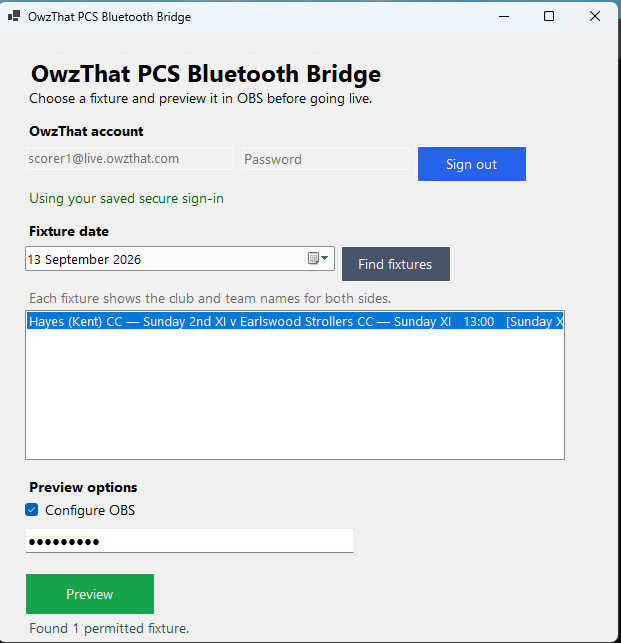
- Open the bridge and sign in. Choose the fixture date and match, leave Configure OBS ticked, enter the OBS WebSocket password and choose Preview.
The bridge applies the team’s stream server, key and scoreboard URL. Your camera scenes and sound are set up in OBS.
Connect cameras and sound.
USB camera → PC
HDMI camera → HDMI-to-USB encoder / capture device → PC
In OBS, add each webcam or capture device as a Video Capture Device source. For multiple cameras, create a scene for each view and include the scoreboard in each scene. Switch scenes during play.
Connect your microphone or audio interface to the PC, add it as an Audio Input Capture source and check the mixer levels. Avoid enabling the same microphone twice.
Check camera compatibility and available USB bandwidth before adding more cameras. See the official OBS camera guide and source guide.
Connect Play-Cricket Scorer.
The scoring device sends each ball to the OwzThat Bluetooth (GATT) bridge running on your PC. This connection supplies the live score overlay.
Play-Cricket Scorer → Match Settings → External Scoreboard
- Keep OwzThat running on the PC and turn Bluetooth on on both devices.
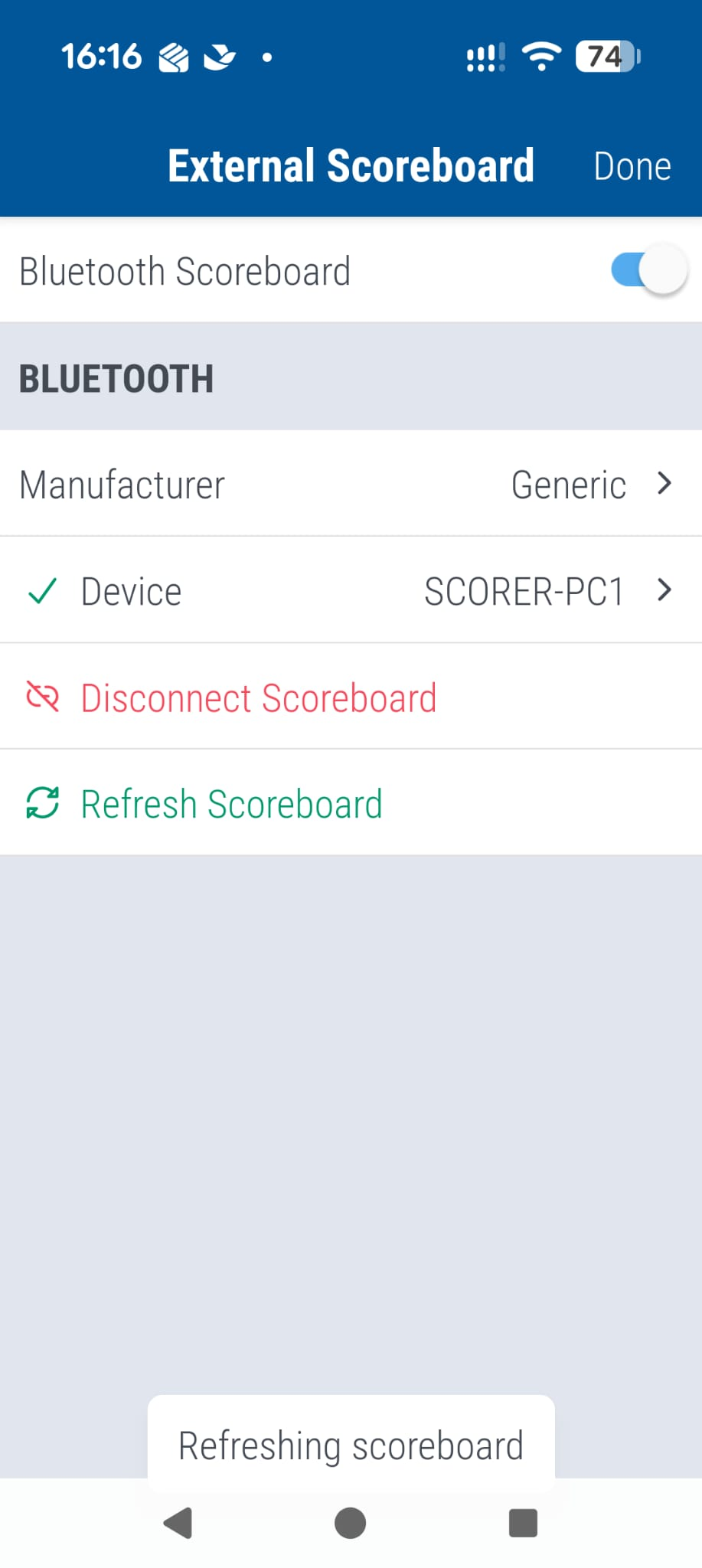
- In Play-Cricket Scorer, turn Bluetooth Scoreboard on and select Manufacturer → Generic.
- Open Device and select the PC running OwzThat. The example shows SCORER-PC1; choose your own device’s name.
- Use Refresh Scoreboard to send the current score. Check that OwzThat shows it, then confirm the next scored ball updates the overlay.
Essential for ball-by-ball updates. Connect from Play-Cricket Scorer’s External Scoreboard screen. Signing into OwzThat or selecting a fixture alone does not connect the live score feed.
If the score stops updating, check the selected device, reconnect the scoreboard and refresh it. Keep the devices within reliable Bluetooth range.
Confirm the bridge is ready.
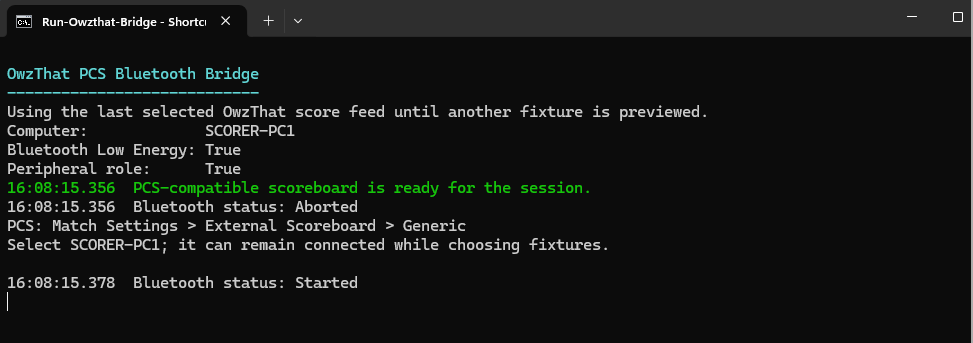
Keep the Bluetooth helper window open. It should report that the scoreboard is ready and Bluetooth has started.
In Play-Cricket Scorer, select the computer name shown by the helper. Then check the match dashboard’s Live Score and SCORE FEED status.
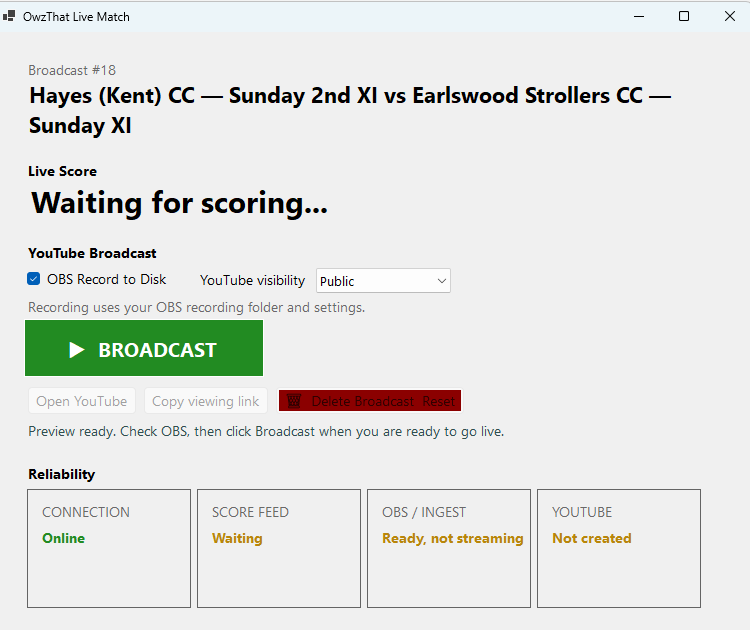
Waiting for scoring means a live score has not arrived. Refresh the scoreboard from Play-Cricket Scorer before broadcasting.
Broadcast your match.
- Choose Public or Unlisted before creating the YouTube broadcast. Your choice is remembered.
- Tick OBS Record to Disk if you also want a local recording. It defaults off and remembers your last choice, using OBS’s recording settings and folder.
- Check the camera, sound and score, then click BROADCAST. The bridge starts OBS streaming and recording if selected.
- Open the YouTube link and check the output.
At the end of the match, click END BROADCAST. OBS and YouTube stop without a closing-summary delay; any recording started by the bridge is finalised.
If you end from the website, keep the bridge open: it stops OBS at its next status check, normally within five seconds after YouTube completes.
Club settings stay in your web portal.
Back to Club setup