Start with Club setup, then choose Android or PC. Screenshots show an example club; your teams and device names will differ.
Add your club.
- Create an OwzThat account or sign in as the club owner.
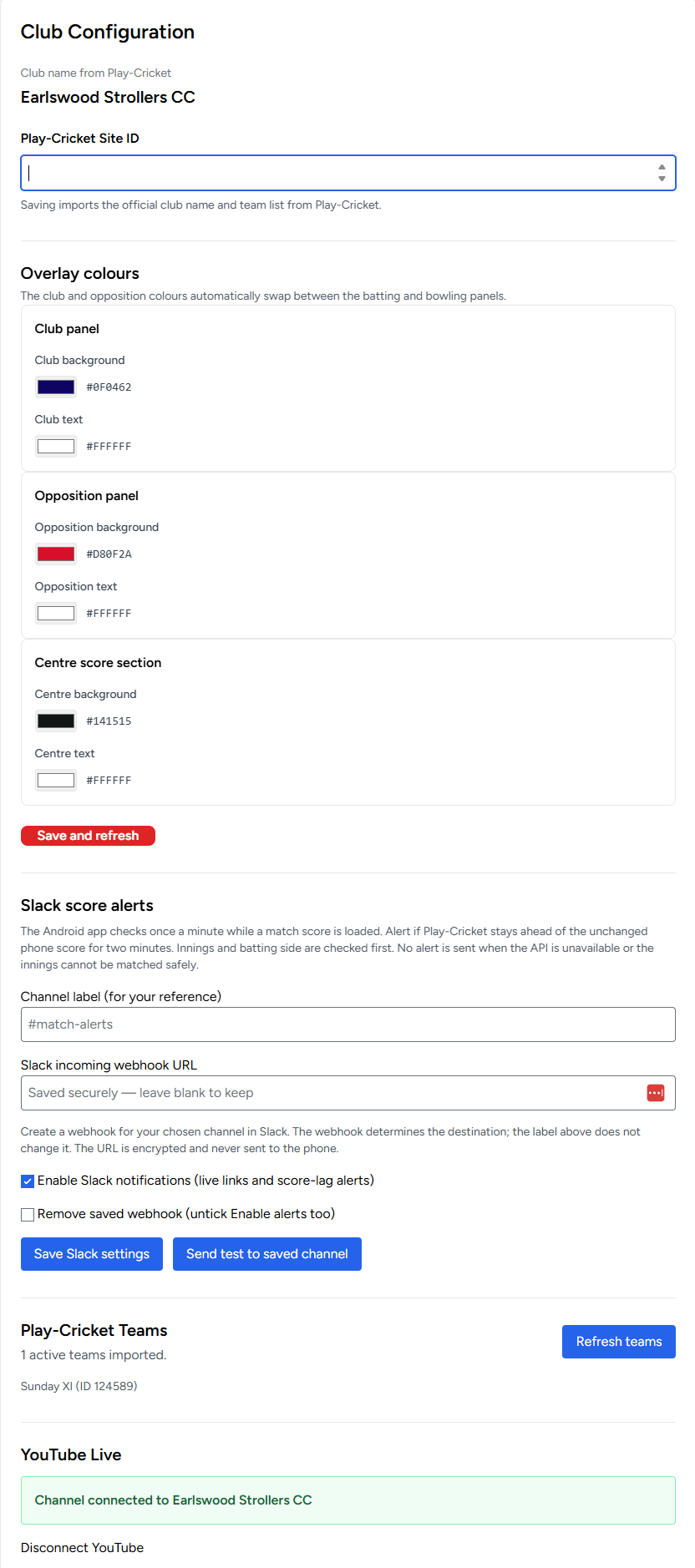
- Open Club Settings, enter your Play-Cricket Site ID and choose Save and refresh. OwzThat imports the official club name and teams.
- Choose your club, opposition and centre-panel colours for the score overlay.
The Site ID identifies the club, not an individual team. Use Refresh teams when the club’s team list changes.
Connect YouTube.
- In Club Settings → YouTube Live, choose Connect YouTube.
- Sign in to the Google account that manages your club’s channel, select the correct channel and approve access.
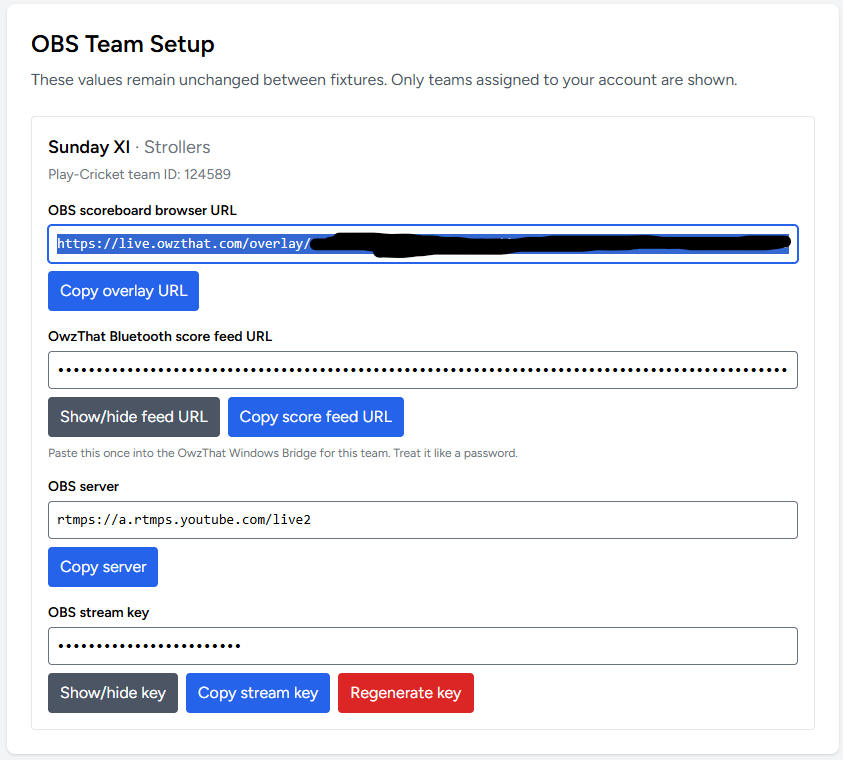
- Check that the club’s channel is shown as connected. Open Team Setup to check the team’s stream details.
Enable live streaming on the channel before match day. See YouTube’s live-streaming setup.
Choose who can watch. Set Public or Unlisted on the web dashboard before creating the broadcast. The choice is remembered. Unlisted broadcasts are accessible by link.
Team stream keys and score-feed URLs are private connection details. The PC bridge retrieves them when you preview a fixture.
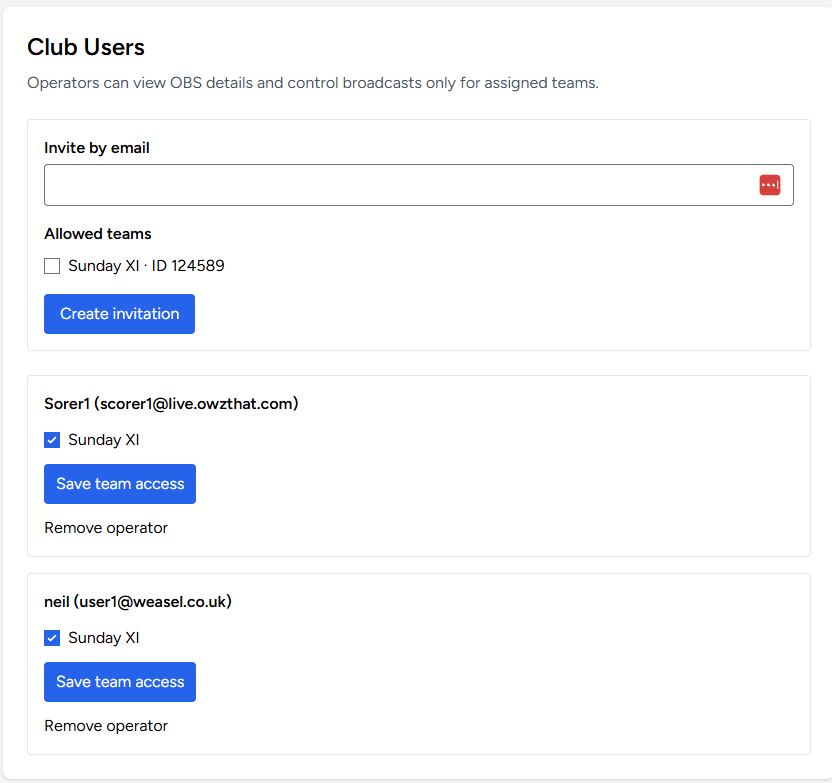
Give your team access.
- Open Club Users, enter the operator’s email and tick the teams they may broadcast.
- Choose Create invitation, then copy and share the invitation link shown.
- The operator opens the link, signs in or registers with that email, and accepts the invitation.
- To change access later, tick the allowed teams and choose Save team access.
Operators use their own login in the Android app or PC bridge. They can only operate teams assigned to them.
Once the club is ready, follow the Android guide or PC guide.